Brief Installation and Activation of Dark-Net Setup
Step 1 — Preparing Yourself and Your Physical Space
Choose a quiet, private location
Avoid public or shared environments
Remove or power off:
Mobile phones
Smart watches
Smart speakers
Tablets and smart TVs
Physically cover:
Laptop webcams
External cameras
Assume microphones are always active
Disconnect unnecessary peripherals
Adopt the correct mindset:
This session is for learning, not doing
Move slowly and deliberately
Do not assume safety by default

Step 2 — Establishing a Trusted System Foundation
Select a dedicated USB drive
Use the USB only for Tails OS

Never:
Share the USB
Reuse it for personal files
Plug it into untrusted systems
Download Tails OS only from the official source
- Verify the downloaded file before use
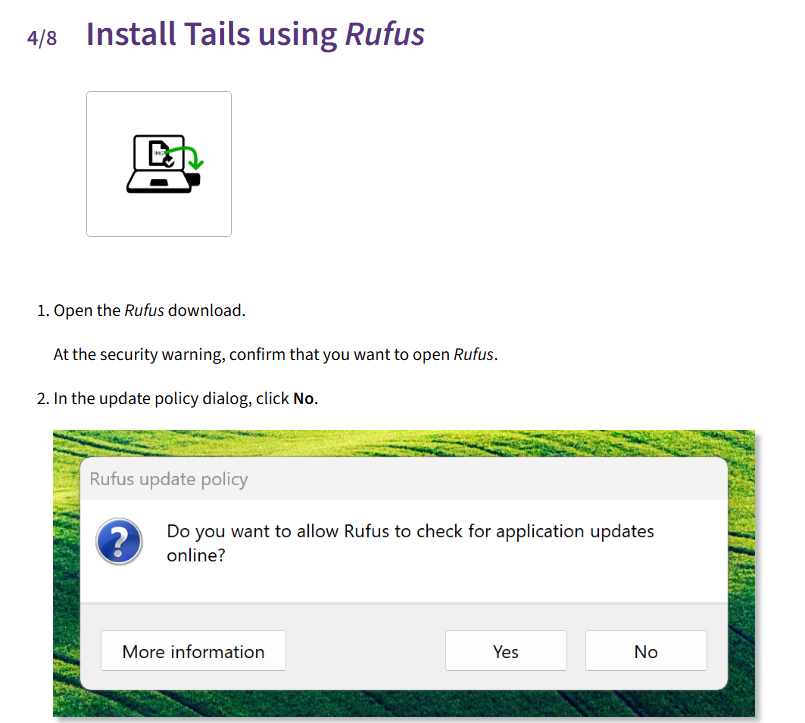
- Write Tails to the USB carefully and without interruption


- Treat the USB as a sensitive identity object
Step 3 — Booting Into a Controlled, Isolated Environment
Power off the computer completely
Insert the Tails USB
Use the boot menu to start from USB
Bypass the normal operating system entirely
Handle Secure Boot or firmware prompts calmly
Confirm success when:
Tails loads
The normal OS does not appear
Understand:
The session is isolated
The system is temporary by design



Step 4 — Initial System Setup and Network Readiness
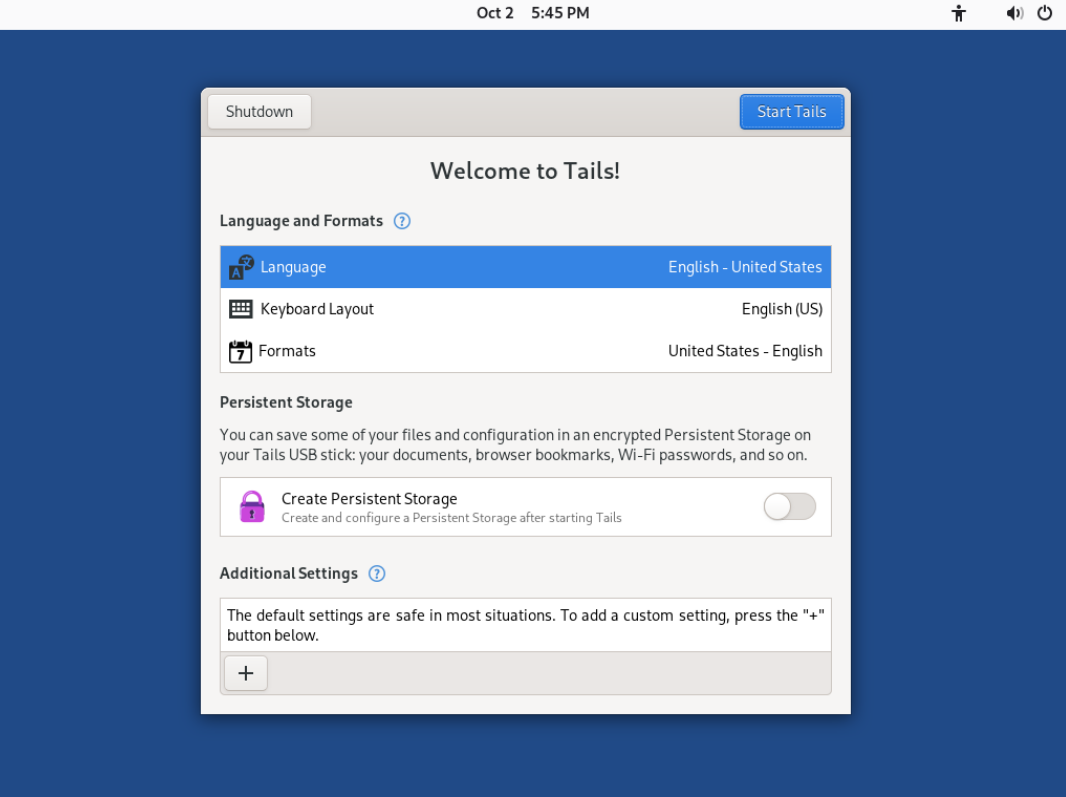
Select correct:
Language
Keyboard layout
Avoid advanced or unfamiliar configuration options
Allow Tails to finish loading fully
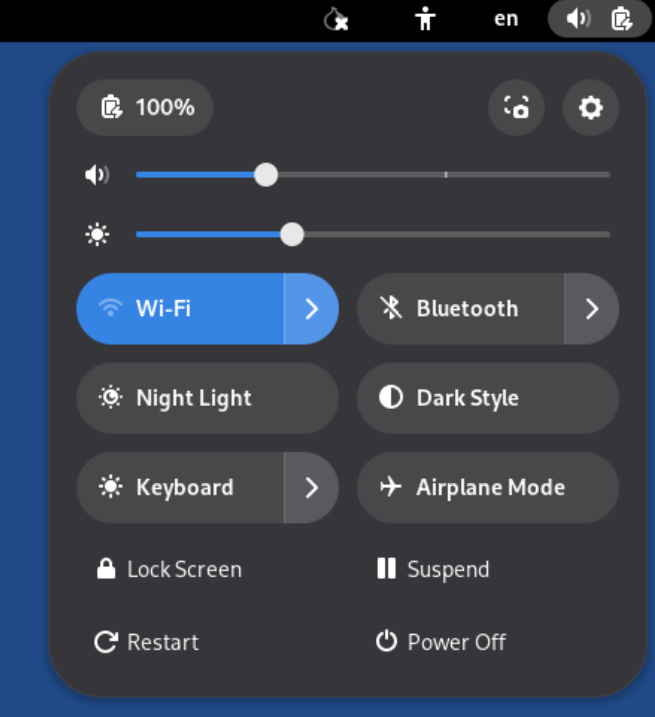
Prepare network hardware:
- Use a supported external network adapter or internal Wi-Fi (if external network adapter is not present)

Confirm:
Wi-Fi is enabled
Networks are visible
Avoid modifying advanced network settings
Step 5 — Understanding the Network and Connecting to Tor
Identify the network type:
Public
Private
Understand that routers can:
See connections
Not see Tor-encrypted content
Handle captive portals if present
Connect to Wi-Fi only when it behaves normally
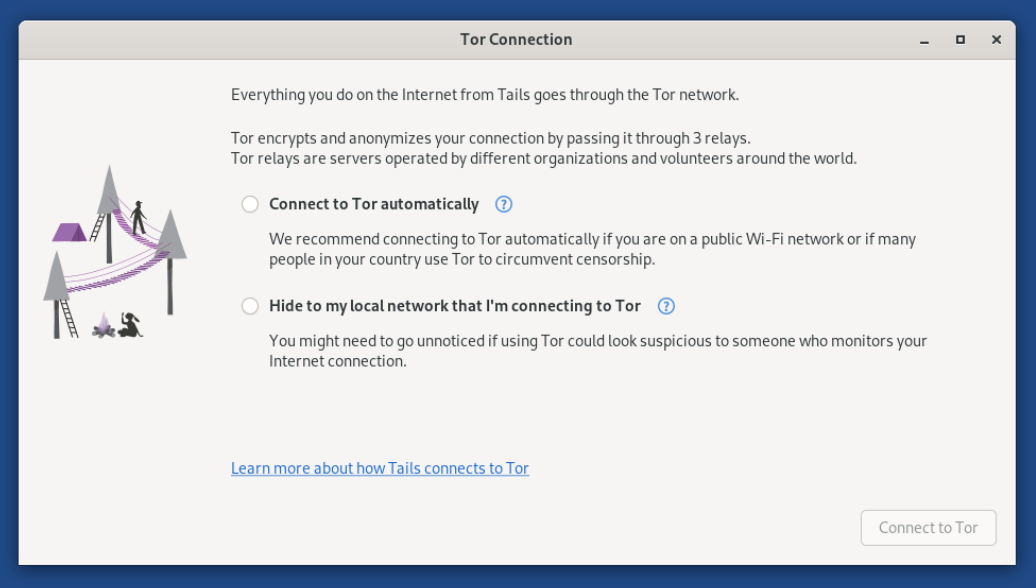
Allow Tor to:
Initialize
Synchronize time
Complete bootstrapping
Expect:
Delays
Slowness
Open Tor Browser only after Tor is fully connected
Step 6 — Safe Browsing Posture and System Awareness
Confirm Tor Browser shows a Tor connection message
Keep security settings at default
Do not:
Log into any accounts
Reuse usernames
Enter personal information
Perform transactions
Treat the session as a temporary anonymous identity
Explore the desktop cautiously:
Do not open random applications
Use only Tor-aware tools
Understand:
Data is not saved by default
Many tools are for later stages
Open Tor Browser and Open TORDEX search engine or Use TORCH as per your preference http://tordexpmg4xy32rfp4ovnz7zq5ujoejwq2u26uxxtkscgo5u3losmeid.onion
Step 7 — Learning About Persistence, Identity, and Fingerprinting
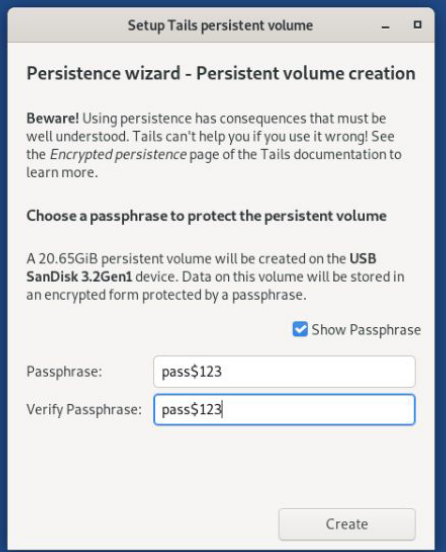
Understand Persistent Storage:
Saves data across sessions
Creates continuity
Increases identity exposure
Learn about cryptographic keys:
Keys represent identity
Saving keys links sessions together
Learn about wallets:
Carry real financial risk
Persistence increases exposure
Avoid enabling persistence unnecessarily
Avoid customizing:
Time or timezone
Language or fonts
Screen resolution
Prefer defaults to blend in
Step 8 — Observation, Discipline, and Clean Shutdown
Keep the first session:
Short
Observational
When browsing:
Move slowly
Expect broken links
Treat sites with skepticism
Avoid:
Downloads
Logins
Interactions
Stop immediately if something feels wrong
End the session cleanly:
Close applications
Shut down normally
Remove USB only after power-off
Reflect briefly:
What worked
What was unclear
What to improve next time